

Automatically updated
Apple regularly releases iOS updates to fix security bugs and improve operating system performance. To ensure that your iPhone is always protected by the latest measures, turn on auto-update.
You can do this by going to Settings > General > Software Updates > Automatically Update. This feature helps your iPhone automatically download and install new updates, ensuring that the device is always protected from security threats.
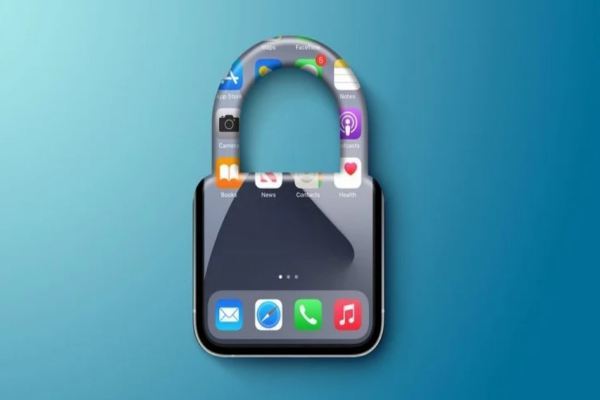
Turning on automatic updates keeps your iPhone patched with dangerous bugs
Using strong encryption and biometrics
Instead of being biased toward using simple and predictable ciphers, create a strong combination of letters, numbers, and special characters to protect your device.
In addition, the use of biometric authentication features such as Face ID or Touch ID not only enhances security but also provides convenience when unlocking devices.
Enable two-factor authentication (2FA)
Two-factor authentication (2FA) is an additional layer of protection for your Apple ID and other accounts. When enabled, in addition to the password you will need to provide a verification code sent to the device or trusted phone number to log in. This helps prevent unauthorized access even if your password is stolen.
Turn on the Find My feature
The 'Find My' feature is a useful tool that helps you locate, lock or delete data on your iPhone remotely if the device is lost or stolen.
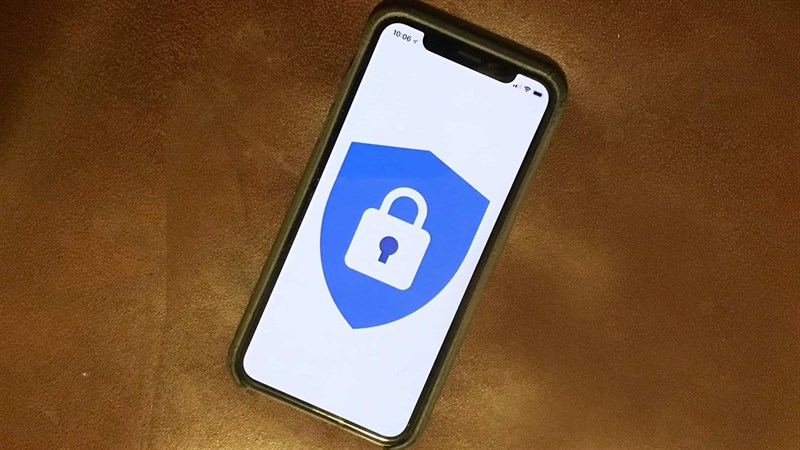
Find My helps protect personal data and increases the ability to retrieve devices
Controlling access to the application
Managing applications' access to your personal information and services is an important part of security. In Settings > Privacy, you can adjust the access rights of apps such as contacts, location, and cameras to ensure that only trusted apps have access to your private information.
Using a VPN
When connecting to public Wi-Fi, using a VPN (Virtual Private Network) service can help secure data transmitted over the network and protect your privacy. A VPN encrypts your data and helps you avoid security risks on unsecured networks.
Turn on the Wi-Fi network security
To avoid connecting to unsecured or untrusted Wi-Fi networks, turn on the network security option in Settings > Wi-Fi and connect only to WPA2 or WPA3 secured networks. This helps protect your data from being stolen or attacked when using public networks.
Reset the network settings
If you are experiencing connection problems or suspect incorrect network configurations, reset the network settings to restore the network configurations to their default state. You can do this in Settings > General > Reset > Reset Network Configuration.
By implementing these security settings, you can enhance the protection for your iPhone and personal information. Don't forget to check and update your security settings regularly to ensure that your device is always protected at its best.
PV
What's going on?
See also https://www.congluan.vn/nhung-cai-dat-quan-trong-tren-iphone-ban-can-bat-post306404.html








































Comment (0)